Dashboard
openclaw-macbookpro · ssh momentatech@[tailscale-ip] · Last verified: 2026-02-26
Gateway & Machine
| Version | 2026.2.25 |
| OS | macOS 26.3 (Intel) · Node 22.22.0 |
| SSH | ssh momentatech@[tailscale-ip] |
| Dashboard | http://127.0.0.1:18789 |
| Config | ~/.openclaw/openclaw.json |
| Security | 0 critical · 2 warnings (expected) |
Agents
| Agent | Model | Channel | Heartbeat |
|---|---|---|---|
| lobster | openai-codex/gpt-5.3-codex |
Default (catch-all) | 30m |
| video-producer | anthropic/claude-opus-4-6 |
#video-production | Disabled |
Routing: video-producer binds to C0AGT89CSKD first, lobster catches all remaining.
Slack Channels
| #lobster-test | C0AGU4295HQ | Active | → lobster |
| #video-production | C0AGT89CSKD | Archived | → video-producer |
#video-production needs to be unarchived before video-producer can be tested.
API Keys
| Service | Owner | Status | Used By |
|---|---|---|---|
| Pexels | ours | 200 OK | video-producer (stock footage) |
| ElevenLabs | ours | 200 OK | video-producer (Roger TTS) |
| Pixabay | ours | 200 OK | video-producer (backup stock) |
| Anthropic | ours | Active | video-producer (Opus 4.6) |
| OpenAI | ours | Active (OAuth) | lobster (GPT-5.3-Codex) |
| Gemini | ours | Active | Embeddings + nano-banana-pro |
| Runway ML | Travis | 401 Expired | BROKEN — needs rotation |
| YouTube | ours | OAuth active | youtube-upload skill (Testing_Gluthoric) |
Key backup: ~/openclaw-backup/keys.json on Mac
Skills (17 total: 10 built-in + 5 custom + 2 ClawHub)
| Skill | Status | Notes |
|---|---|---|
| sag | Ready | ElevenLabs TTS (Roger voice, --stability/--similarity/--style flags) |
| slack | Ready | Messages, reactions, pins (not file uploads) |
| nano-banana-pro | Ready | Gemini 3 Pro image gen for thumbnails |
| video-frames | Ready | Extract frames/clips via ffmpeg |
| coding-agent | Ready | Delegate coding to sub-agents |
| skill-creator | Ready | Create/update agent skills |
| imsg | Ready | iMessage/SMS CLI |
| tmux | Ready | Remote-control tmux sessions |
| healthcheck | Ready | Host security hardening |
| weather | Ready | Weather via wttr.in |
Custom-Built Skills (Video Pipeline)
| Skill | Scripts | Status |
|---|---|---|
| pexels-stock | search_video, search_photo, download, preview | BUILT |
| pillow-video-cards | section_card, intro_slide, outro_slide, thumbnail, text_overlay | TESTED |
| ffmpeg-assembler | normalize, concat_clips, mix_audio, overlay_image, assemble | TESTED |
| pixabay-stock | search_video, search_photo, download | TESTED |
| youtube-upload | upload, set_thumbnail, check_quota | TESTED |
ClawHub-Installed Skills
| Skill | Type | Notes |
|---|---|---|
| video-generation | Reference docs | API guides for Runway Gen-4.5, Luma, Kling, Pika, Replicate, Stable Video Diffusion |
| video-subtitles | Script | Whisper transcription + SRT generation + burn-in via generate_srt.py |
Installed Toolchain
| Tool | Version | Path |
|---|---|---|
| FFmpeg | 8.0.1 | /usr/local/bin/ffmpeg |
| Python | 3.12.12 | /usr/local/bin/python3.12 |
| ImageMagick | 7.1.2-15 | /usr/local/bin/magick |
| yt-dlp | 2026.02.21 | /usr/local/bin/yt-dlp |
| sag (TTS) | 0.2.2 | /usr/local/bin/sag |
| Pillow | 12.1.1 | pip3.12 |
| requests | 2.32.5 | pip3.12 |
| pydub | 0.25.1 | pip3.12 |
Fonts: Arial Bold + Impact at /System/Library/Fonts/Supplemental/
Remaining Tasks
| Task | Status |
|---|---|
| Build youtube-upload skill | Done |
| YouTube OAuth flow (get refresh token) | Done (Testing_Gluthoric) |
| Unarchive #video-production in Slack | User action needed |
| Verify Slack routing end-to-end | Pending |
| Configure model fallbacks (Opus → Sonnet) | Pending |
| Runway ML key rotation | Blocked (Travis) |
| Pexels API | 503 (their outage, Pixabay covers it) |
Setup Log
Step-by-step record of OpenClaw installation and configuration on the Momenta Mac.
Task Tracker
| # | Task | Status |
|---|---|---|
| 1 | Install OpenClaw | DONE |
| 2 | Configure model providers | DONE |
| 3 | Connect Slack (socket mode) | DONE |
| 4 | Create Lobster agent | DONE |
| 5 | Create Video-Producer agent | DONE |
| 6 | Configure agent routing | DONE |
| 7 | Pre-flight verification | DONE |
Task 1: Install OpenClaw
Machine Details
| Host | openclaw-macbookpro |
| User | momentatech |
| OS | macOS 26.3 (Intel) |
| Tailscale IP | [redacted] |
| Node | v22.22.0 (/usr/local/bin/node) |
| Homebrew | 5.0.15 (/usr/local/bin/brew) |
Install Steps
1. First attempt — failed (permissions)
curl -fsSL https://openclaw.ai/install.sh | bash
EACCES: permission denied — old install owned directory as root.
2. Fix permissions
sudo chown -R $(whoami) /usr/local/lib/node_modules/
3. Success
curl -fsSL https://openclaw.ai/install.sh | bash
v2026.2.25 installed. Gateway token auth configured, LaunchAgent installed.
Post-Install
| Config | ~/.openclaw/openclaw.json |
| Gateway token | [redacted — see openclaw.json] |
| Dashboard | http://127.0.0.1:18789 |
| Skills | 7 / 51 eligible |
| Keys backup | ~/openclaw-backup/keys.json |
Task 2: Model Providers
OpenAI Codex (default)
openclaw configure → Model → OpenAI → OpenAI Codex (ChatGPT OAuth)
| Default model | openai-codex/gpt-5.3-codex |
| Auth | OAuth / profile openai-codex:default |
Anthropic (added later)
Via env.ANTHROPIC_API_KEY in openclaw.json. Auto-detected.
Available: anthropic/claude-opus-4-6, anthropic/claude-sonnet-4-6
Task 3: Connect Slack
openclaw configure → Channels → Slack (Socket Mode)
- Bot token:
xoxb-[redacted] - App token:
xapp-[redacted] - Channel allowlist:
[lobster-test],[video-production] - DM policy: Pairing — approved sender
[redacted]
| App ID | A0AGCHZD03Z |
| Mode | Socket Mode |
| #lobster-test | C0AGU4295HQ |
| #video-production | C0AGT89CSKD |
Task 4: Lobster Agent
Default Slack bot. Handles all channels except #video-production.
| Agent ID | lobster |
| Model | openai-codex/gpt-5.3-codex |
| Workspace | ~/.openclaw/workspace-lobster/ |
SOUL.md + IDENTITY.md (lobster)
Task 5: Video-Producer Agent
AI video production for Punchlist Zero.
| Agent ID | video-producer |
| Model | anthropic/claude-opus-4-6 |
| Channel | #video-production (C0AGT89CSKD) |
| Workspace | ~/.openclaw/workspace-video/ |
SOUL.md + IDENTITY.md + config/{technical_notes, style_guide, demo_context}.md
Task 6: Agent Routing
Gotcha: Agents go in agents.list[] array, NOT top-level keys. First attempt was rejected.
{
  "bindings": [
    {
      "agentId": "video-producer",
      "match": { "channel": "slack", "peer": { "kind": "channel", "id": "C0AGT89CSKD" } }
    },
    {
      "agentId": "lobster",
      "match": { "channel": "slack" }
    }
  ]
}
Order matters: specific peer match first, catch-all second.
Task 7: Pre-flight
Verified 2026-02-26 05:40 UTC
| Check | Result |
|---|---|
| OpenClaw | v2026.2.25 |
| Gateway | Active (LaunchAgent) |
| Config | Clean (openclaw doctor) |
| Slack | Socket mode, 179ms |
| Agents | lobster + video-producer |
| Bindings | video-producer → C0AGT89CSKD, lobster → catch-all |
| API keys | ElevenLabs, Pexels, Pixabay, Anthropic, Gemini |
| Video tools | ffmpeg, Python 3.12, Pillow, ImageMagick, yt-dlp, sag |
| Skills | slack, sag, video-frames, coding-agent, nano-banana-pro |
| #lobster-test | Active |
| #video-production | Archived |
| Memory search | Gemini embeddings |
| Runway ML | Expired |
Video Agent
Production pipeline for Punchlist Zero — faceless YouTube, energy industry.
Overview
| Agent ID | video-producer |
| Model | Claude Opus 4.6 |
| Channel | #video-production (C0AGT89CSKD) |
| Voice | ElevenLabs "Roger" (CwhRBWXzGAHq8TQ4Fs17) |
| Brand | Gold #F5B800 + black/white |
| Output | 1920x1080, H.264 MP4, 30fps, AAC |
| Pacing | 160-185 WPM narration |
Production Pipeline
7-step human-in-the-loop. Every step needs Dustin's approval.
Green = built skill
Steps 1-2: Script & Storyboard
Agent itself (Opus 4.6). Topic → 3 angles → script → shot-by-shot storyboard in Slack thread.
Step 3: Footage
pexels-stock + pixabay-stock skills. Search, preview, download. 1080p+ filter baked in.
Step 4: Voiceover
sag skill. ElevenLabs TTS, Roger voice. Preview via MEDIA: prefix.
Step 5: Assembly
pillow-video-cards + ffmpeg-assembler. Section cards via Pillow, then assemble.py --manifest → final MP4.
Step 6: Thumbnail
pillow-video-cards — thumbnail.py. 1280x720 PNG, bg-color or bg-image.
Step 7: Upload
youtube-upload skill. Resumable upload via YouTube Data API v3.
| Scripts | upload.py, set_thumbnail.py, check_quota.py |
| Deps | google-api-python-client, google-auth, google-auth-oauthlib |
| Env vars | YOUTUBE_CLIENT_ID, YOUTUBE_CLIENT_SECRET, YOUTUBE_REFRESH_TOKEN |
| Quota | Upload=1600, thumbnail=50, list=1 (daily: 10,000) |
| Category | 28 (Science & Technology) |
| Chunk size | 10MB resumable |
Custom Skills
pexels-stock BUILT
scripts/ search_video.py, search_photo.py, download.py, preview.py
Requires PEXELS_API_KEY + requests. API was 503 at test (transient).
pillow-video-cards TESTED
scripts/ section_card.py, intro_slide.py, outro_slide.py, thumbnail.py, text_overlay.py
All 5 tested. Brand: Gold #F5B800, Arial Bold, Impact.
ffmpeg-assembler TESTED
scripts/ assemble.py, normalize.py, concat_clips.py, mix_audio.py, overlay_image.py
normalize.py tested. Full assembly pending real media.
pixabay-stock TESTED
scripts/ search_video.py, search_photo.py, download.py
500 results for "solar energy". stdlib urllib only.
youtube-upload TESTED
scripts/ upload.py, set_thumbnail.py, check_quota.py
references/ youtube_api.md
Resumable upload (10MB chunks). OAuth active — Testing_Gluthoric (UCv0sMGwhWthhXT715pepuxg).
video-generation INSTALLED
ClawHub reference skill. API guides for Runway Gen-4.5, Luma, Kling, Pika, Replicate, Stable Video Diffusion. Agent reads docs and writes API calls.
video-subtitles INSTALLED
scripts/ generate_srt.py
Whisper transcription + SRT generation. Supports --burn for hardcoded subtitles, --translate for language translation.
Why Custom Skills Matter
| Without | With | |
|---|---|---|
| Tokens/search | 400-800 | ~30 |
| Tokens/download | 200-400 | ~20 |
| 10-shot video | ~16,000+ wasted | ~500 |
| Errors | High | Near zero |
| 1080p filter | Might forget | Baked in |
import requests, json, os
API_KEY = os.environ.get("PEXELS_API_KEY")
# ... 20+ lines of boilerplate every timepython3 {baseDir}/scripts/search_video.py \
--query "oil rig sunset" --min-height 1080 --count 5Test Results
| Skill | Script | Result |
|---|---|---|
| pillow-video-cards | section_card.py | 1920x1080 PNG |
| intro_slide.py | 1920x1080 PNG | |
| outro_slide.py | 1920x1080 PNG | |
| thumbnail.py | 1280x720 PNG | |
| text_overlay.py | 1920x1080 transparent PNG | |
| ffmpeg-assembler | normalize.py | PNG → 1080p MP4 |
| pixabay-stock | search_video.py | 500 results |
| pexels-stock | search_video.py | API 503 (transient) |
Technical Constraints
- No ffmpeg drawtext — no freetype. ALL text via Pillow.
- Full binary paths —
/usr/local/bin/{ffmpeg,python3.12,sag} - File uploads —
MEDIA:/path/to/filein agent replies - Normalize clips — 1920x1080@30fps before assembly
- Roger voice only —
CwhRBWXzGAHq8TQ4Fs17 - Runway ML broken — expired. Pexels + Pixabay only.
Workspace Map
~/.openclaw/workspace-video/
├── SOUL.md, IDENTITY.md
├── config/{technical_notes,style_guide,demo_context}.md
├── pexels-stock/          # Stock footage
├── pillow-video-cards/    # Text graphics
├── ffmpeg-assembler/      # Video assembly
├── pixabay-stock/         # Backup stock
├── youtube-upload/        # YouTube API (tested)
├── assets/{stock_video,stock_images,music,voiceover}/
└── output/{videos,thumbnails,metadata}/
API Keys Setup
Step-by-step guide for Travis to get all API keys needed to run the OpenClaw video pipeline on his own machine.
Overview
The video pipeline needs 6 API keys from different providers. Two of them (Anthropic & OpenAI) are configured via openclaw configure OAuth login. The other four are pasted into ~/.openclaw/openclaw.json as environment variables.
| # | Provider | Purpose | Cost | Setup Method |
|---|---|---|---|---|
| 1 | Anthropic (Claude) | Video-producer agent brain | Pay-per-token | openclaw configure |
| 2 | OpenAI (ChatGPT) | Lobster agent brain | Pay-per-token | openclaw configure |
| 3 | ElevenLabs | Voice synthesis (TTS) | Free tier available | API key in config |
| 4 | Pexels | Stock video/photos | Free | API key in config |
| 5 | Pixabay | Stock video/photos (backup) | Free | API key in config |
| 6 | YouTube (GCP) | Video uploads | Free (quota limits) | OAuth in config |
Time estimate: ~30 minutes total. Pexels and Pixabay are instant. ElevenLabs takes 2 minutes. Anthropic and OpenAI each take ~5 minutes. YouTube/GCP is the longest at ~15 minutes due to the OAuth flow.
1. Anthropic (Claude API)
What it's for: Powers the video-producer agent (Claude Opus 4.6). This is the brain that writes scripts, plans storyboards, and orchestrates the entire video pipeline.
Step 1: Create an account
- Go to console.anthropic.com
- Click "Continue with Google" or enter your email
- Verify your email if signing up new
Step 2: Add billing
- In the left sidebar, click Billing
- Add a credit card (you only pay for what you use)
- Set a monthly spend limit if you want (recommended: start with $20)
Typical cost per video: ~$0.50-2.00 depending on script length and revisions.
Step 3: Create an API key
- Left sidebar: API keys (under MANAGE)
- Click "+ Create Key" (top right)
- Name it something like
openclaw-travis - Leave workspace as Default
- Click Add
- Copy the key immediately — it starts with
sk-ant-api03-and you won't see it again
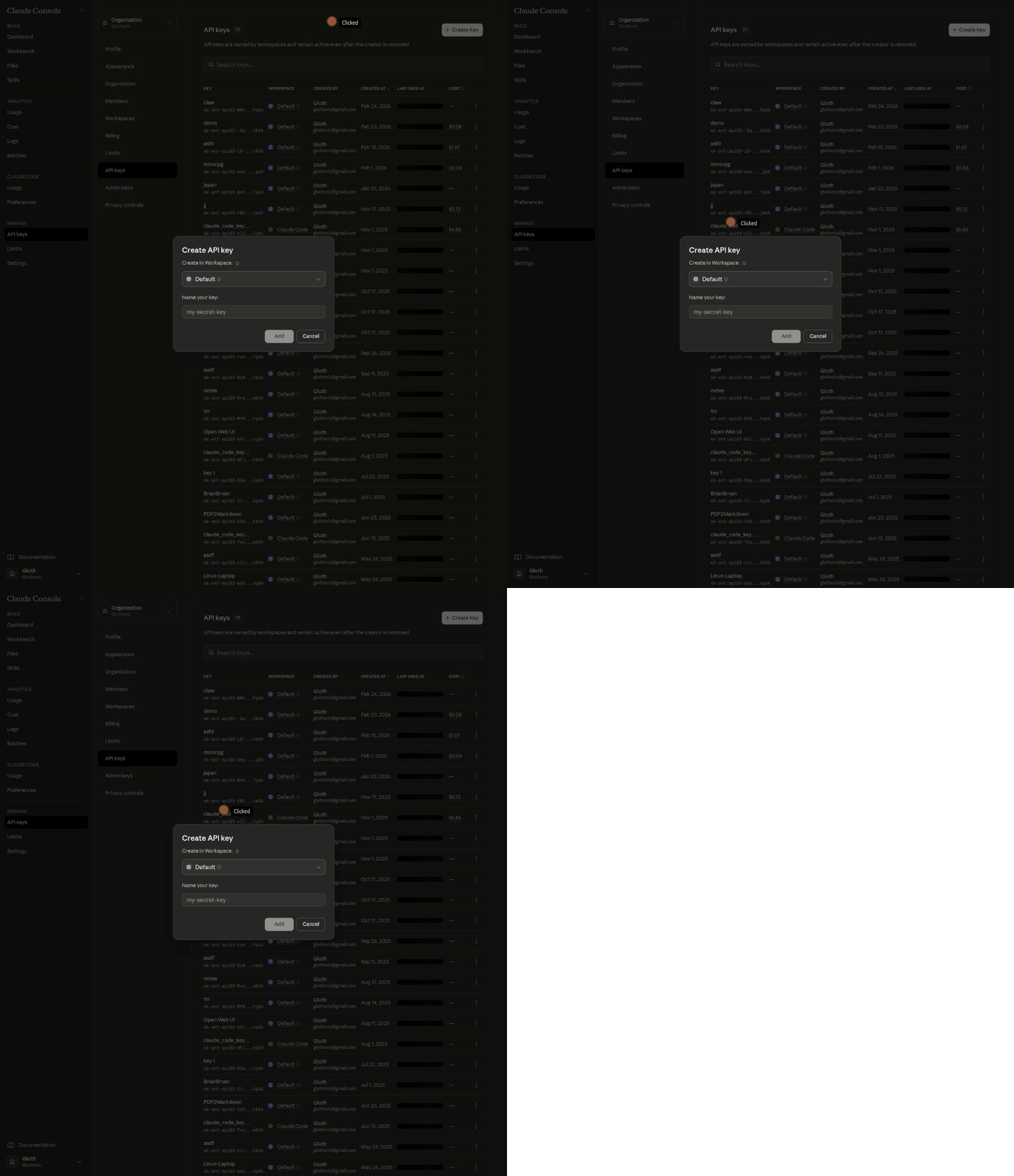
The Create API Key dialog. Pick a name, leave workspace as Default, click Add.
Save it: Paste the key somewhere safe (password manager, secure note). You'll need it for the openclaw configure step later.
2. OpenAI (ChatGPT API)
What it's for: Powers the lobster agent (GPT-5.3-Codex). This is the general-purpose Slack bot that handles everything except video production.
Step 1: Create an account
- Go to platform.openai.com
- Sign up or log in with your existing ChatGPT account
Step 2: Add billing
- Top-left dropdown: click your org name → Billing
- Add a payment method
- Set a monthly budget limit (recommended: start with $20)
Step 3: Create an API key
- Left sidebar: API keys (under Manage)
- Click "+ Create new secret key" (top right)
- Owned by: You
- Name:
openclaw-travis - Project: Default project
- Permissions: All
- Click "Create secret key"
- Copy the key immediately — it starts with
sk-and you won't see it again
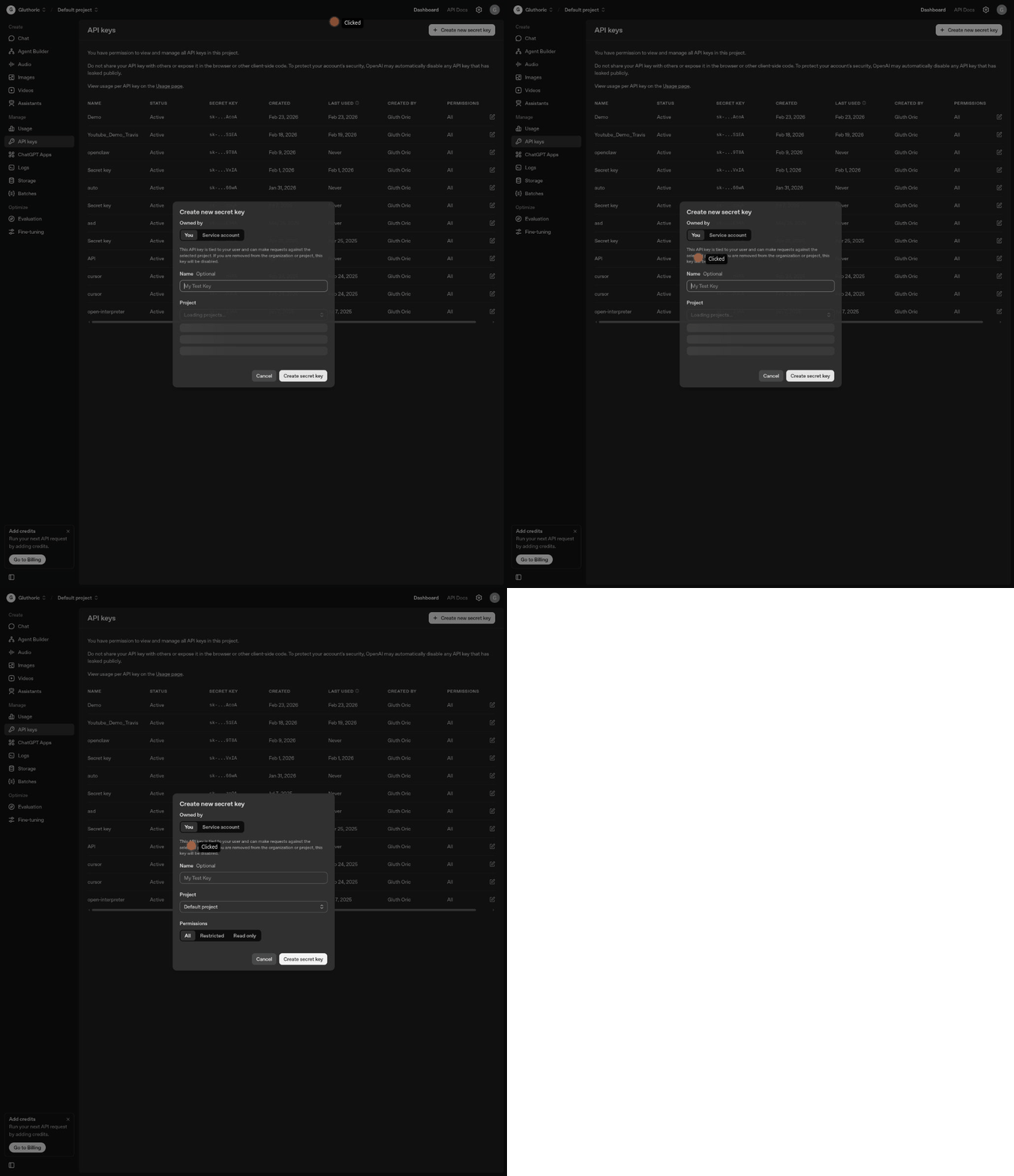
The Create Secret Key dialog. Set name, leave permissions as All, click Create secret key.
Alternative: OpenClaw also supports OpenAI Codex OAuth login (the ChatGPT-based login). During openclaw configure you can choose "OpenAI Codex" and log in with your ChatGPT account instead of pasting an API key. This is what we use on the Momenta Mac.
3. ElevenLabs
What it's for: Text-to-speech voice synthesis. The video pipeline uses ElevenLabs to generate narration audio using the "Roger" voice (CwhRBWXzGAHq8TQ4Fs17).
Step 1: Create an account
- Go to elevenlabs.io
- Click "Sign Up" (top right) — Google sign-in works
- The free tier gives you 10,000 characters/month (enough for ~2-3 short videos)
Step 2: Get your API key
- Click your profile icon (bottom-left) → Developers
- Or go directly to: elevenlabs.io/app/developers/api-keys
- Click the "API Keys" tab
- Click "+ Create Key"
- Your key will appear in the list — click the copy icon next to it
- Make sure the key's Enabled toggle is ON (dark toggle = enabled)
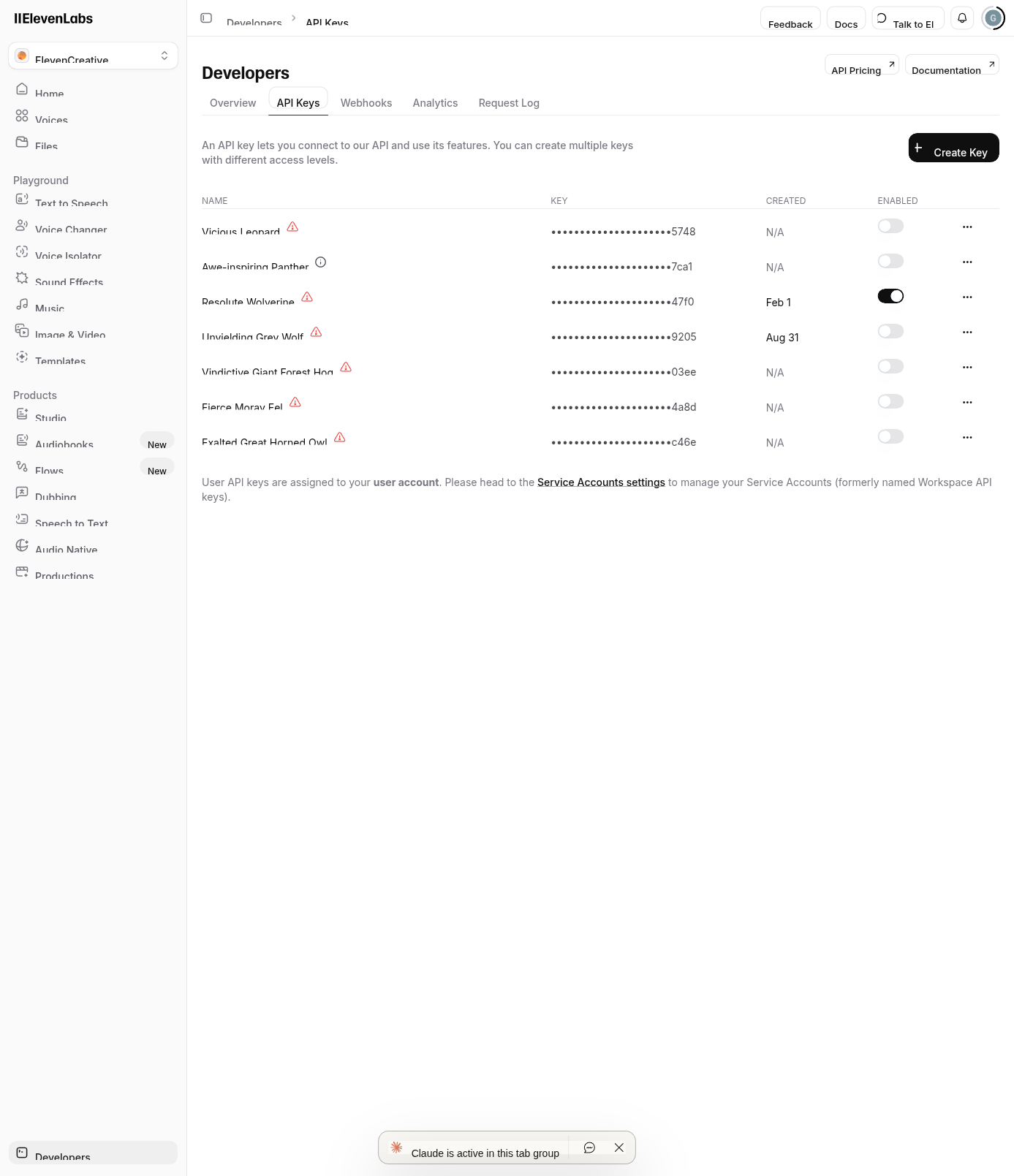
The ElevenLabs Developers → API Keys page. Click + Create Key, then toggle it on.
Free tier limits: 10,000 characters/month. For heavier use, the Starter plan ($5/mo) gives 30,000 characters. The video pipeline uses ~1,500-3,000 characters per video narration.
4. Pexels
What it's for: Free stock photos and videos. The pexels-stock skill searches and downloads HD/4K footage for video B-roll.
Step 1: Create an account
- Go to pexels.com
- Click "Join" (top right) — Google sign-in works
Step 2: Get your API key
- Go to pexels.com/api
- Click "Your API Key"
- If this is your first time, you'll fill out a short form:
- What are you building? → "AI video production tool"
- URL → can be anything (your website, GitHub, etc.)
- After submitting, your key appears on the page at pexels.com/api/key
- Copy the long alphanumeric string from the text box
Completely free. 200 requests/hour, 20,000 requests/month. No credit card needed. If you need more, email api@pexels.com.
5. Pixabay
What it's for: Backup stock photos and videos. The pixabay-stock skill is used when Pexels is down or doesn't have the right footage.
Step 1: Create an account
- Go to pixabay.com
- Click "Join" (top right)
- Sign up with email or Google
Step 2: Get your API key
- Go to pixabay.com/api/docs
- If you're logged in, your API key is shown directly on the page in a green highlighted box next to "Your API key:"
- It's in the "Parameters" section under "Search Images" — scroll down to find it
- Copy the key (it's a long alphanumeric string like
12345678-abcdef...)
Completely free. 100 requests per 60 seconds. No credit card needed. Results must be cached for 24 hours per their terms.
6. YouTube (Google Cloud)
What it's for: Uploading finished videos to YouTube via the Data API v3. This is the most complex setup because it requires creating a Google Cloud project and going through an OAuth flow.
This is optional. You only need this if you want the bot to upload videos directly to YouTube. You can skip this and upload manually if you prefer.
Step 1: Create a GCP project
- Go to console.cloud.google.com
- Sign in with the Google account you want to use
- Click the project dropdown (top bar, next to "Google Cloud")
- Click "New Project"
- Name:
openclaw-yt-travis - Click Create
- Wait ~30 seconds, then select the new project from the dropdown
Step 2: Enable the YouTube Data API
- In the left sidebar: APIs & Services → Library
- Search for "YouTube Data API v3"
- Click it, then click Enable
Step 3: Configure OAuth consent screen
- Left sidebar: APIs & Services → OAuth consent screen
- User type: External → Create
- Fill in the required fields:
- App name:
OpenClaw Video Upload - User support email: your email
- Developer contact: your email
- App name:
- Click Save and Continue through the remaining steps (Scopes, Test Users, Summary)
- On the Test Users step, add your own Gmail/Google email as a test user
Step 4: Create OAuth credentials
- Left sidebar: APIs & Services → Credentials
- Click "+ Create Credentials" → OAuth client ID
- Application type: Desktop app
- Name:
openclaw-desktop - Click Create
- A dialog appears with your Client ID and Client Secret — copy both
Step 5: Get a refresh token
Run the OAuth flow on your machine to get a refresh token:
pip3 install google-auth google-auth-oauthlib google-api-python-client
Create a file called get_token.py:
from google_auth_oauthlib.flow import InstalledAppFlow

flow = InstalledAppFlow.from_client_config(
    {
        "installed": {
            "client_id": "YOUR_CLIENT_ID",
            "client_secret": "YOUR_CLIENT_SECRET",
            "auth_uri": "https://accounts.google.com/o/oauth2/auth",
            "token_uri": "https://oauth2.googleapis.com/token"
        }
    },
    scopes=["https://www.googleapis.com/auth/youtube.upload",
            "https://www.googleapis.com/auth/youtube"]
)
creds = flow.run_local_server(port=8080)
print(f"\nRefresh Token: {creds.refresh_token}")
print(f"Access Token:  {creds.token}")
Run it:
python3 get_token.py
- A browser window opens — sign in with your YouTube account
- Click "Continue" through the consent screen (it'll warn about unverified app — click "Advanced" → "Go to OpenClaw Video Upload")
- Grant access
- Copy the Refresh Token from the terminal output
Important: The app stays in "Testing" mode, which means tokens expire every 7 days. You'll need to re-run get_token.py weekly, or submit your app for Google verification (takes days/weeks). For testing this is fine.
Configure OpenClaw
Now that you have all your keys, let's plug them into OpenClaw.
Method 1: openclaw configure (Anthropic & OpenAI)
Run the interactive configurator:
openclaw configure
Navigate to: Model → Anthropic
- Choose "API Key" when prompted
- Paste your Anthropic API key (
sk-ant-api03-...)
Then navigate to: Model → OpenAI
- Choose "OpenAI Codex (ChatGPT OAuth)" for the easiest login
- A browser window opens — log in with your ChatGPT account
- Or choose "API Key" and paste your
sk-...key
Method 2: Manual config file (all other keys)
Open the OpenClaw config file:
nano ~/.openclaw/openclaw.json
Add or update the env section with your keys:
{
  "env": {
    "ANTHROPIC_API_KEY": "sk-ant-api03-YOUR-KEY-HERE",
    "ELEVENLABS_API_KEY": "YOUR-ELEVENLABS-KEY",
    "PEXELS_API_KEY": "YOUR-PEXELS-KEY",
    "PIXABAY_API_KEY": "YOUR-PIXABAY-KEY",
    "YOUTUBE_CLIENT_ID": "YOUR-GCP-CLIENT-ID.apps.googleusercontent.com",
    "YOUTUBE_CLIENT_SECRET": "YOUR-GCP-CLIENT-SECRET",
    "YOUTUBE_REFRESH_TOKEN": "YOUR-REFRESH-TOKEN"
  }
}
Only add the keys you have. The file already has other settings — just add/update the env block.
Security: Never commit openclaw.json to git. Never share your API keys in Slack, email, or screenshots. If a key leaks, rotate it immediately on the provider's dashboard.
Verify Everything Works
After configuring all keys, run the OpenClaw doctor to verify:
openclaw doctor
You should see green checks for all configured providers. Then test each one:
Test Anthropic
# In Slack, message the bot:
@lobster what model are you using?

# Or test directly:
curl -s https://api.anthropic.com/v1/messages \
  -H "x-api-key: $ANTHROPIC_API_KEY" \
  -H "anthropic-version: 2023-06-01" \
  -H "content-type: application/json" \
  -d '{"model":"claude-sonnet-4-6","max_tokens":10,"messages":[{"role":"user","content":"hi"}]}' \
  | head -c 200
Test ElevenLabs
curl -s "https://api.elevenlabs.io/v1/user" \
  -H "xi-api-key: $ELEVENLABS_API_KEY" | python3 -m json.tool
Should return your account info with character limits.
Test Pexels
curl -s "https://api.pexels.com/v1/search?query=solar+energy&per_page=1" \
  -H "Authorization: $PEXELS_API_KEY" | python3 -m json.tool
Should return a JSON response with photo results.
Test Pixabay
curl -s "https://pixabay.com/api/?key=$PIXABAY_API_KEY&q=solar+energy&per_page=3" \
  | python3 -m json.tool
Should return a JSON response with totalHits and image results.
Test YouTube
# Uses the youtube-upload skill's check_quota.py:
python3 ~/.openclaw/workspace-video/youtube-upload/scripts/check_quota.py
Should show your channel name and remaining quota.
All set! Once all tests pass, the video pipeline is ready. Try sending a message to #video-production in Slack to kick off your first video.
Quick Reference
| Key | Env Var | Where to Get It |
|---|---|---|
| Anthropic | ANTHROPIC_API_KEY | console.anthropic.com/settings/keys |
| OpenAI | OPENAI_API_KEY | platform.openai.com/api-keys |
| ElevenLabs | ELEVENLABS_API_KEY | elevenlabs.io/app/developers/api-keys |
| Pexels | PEXELS_API_KEY | pexels.com/api/key |
| Pixabay | PIXABAY_API_KEY | pixabay.com/api/docs |
| YouTube Client ID | YOUTUBE_CLIENT_ID | GCP Console → Credentials |
| YouTube Client Secret | YOUTUBE_CLIENT_SECRET | Same as above |
| YouTube Refresh Token | YOUTUBE_REFRESH_TOKEN | OAuth flow (get_token.py) |
Changelog
Timeline of setup, configuration, and fixes.
| Date | Change |
|---|---|
| 2026-02-25 | Full wipe and fresh OpenClaw install (v2026.2.25) |
| 2026-02-25 | Configured lobster + video-producer agents with Slack routing |
| 2026-02-25 | API keys migrated from backup (Pexels, Pixabay, ElevenLabs, Anthropic) |
| 2026-02-25 | Custom skills: pexels-stock, pillow-video-cards, ffmpeg-assembler, pixabay-stock |
| 2026-02-26 | Added GEMINI_API_KEY — fixed memory search + unlocked nano-banana-pro |
| 2026-02-26 | Skills 10/51 ready. Full sanity check passed. |
| 2026-02-26 | Docs redesigned: sidebar nav, dashboard landing, separate pages |
| 2026-02-26 | youtube-upload skill built + tested (Testing_Gluthoric channel) |
| 2026-02-26 | GCP project openclaw-yt-2026 created, YouTube OAuth completed |
| 2026-02-26 | ClawHub: installed video-generation (Runway/Luma/Kling/Pika guides) + video-subtitles (Whisper SRT) |
| 2026-02-26 | Pipeline audit: ElevenLabs PASS (3 Roger variants), Pixabay PASS, YouTube PASS, Pexels 503 (their outage) |
| 2026-02-27 | Added API Keys Setup guide page for Travis (Anthropic, OpenAI, ElevenLabs, Pexels, Pixabay, YouTube OAuth) |